
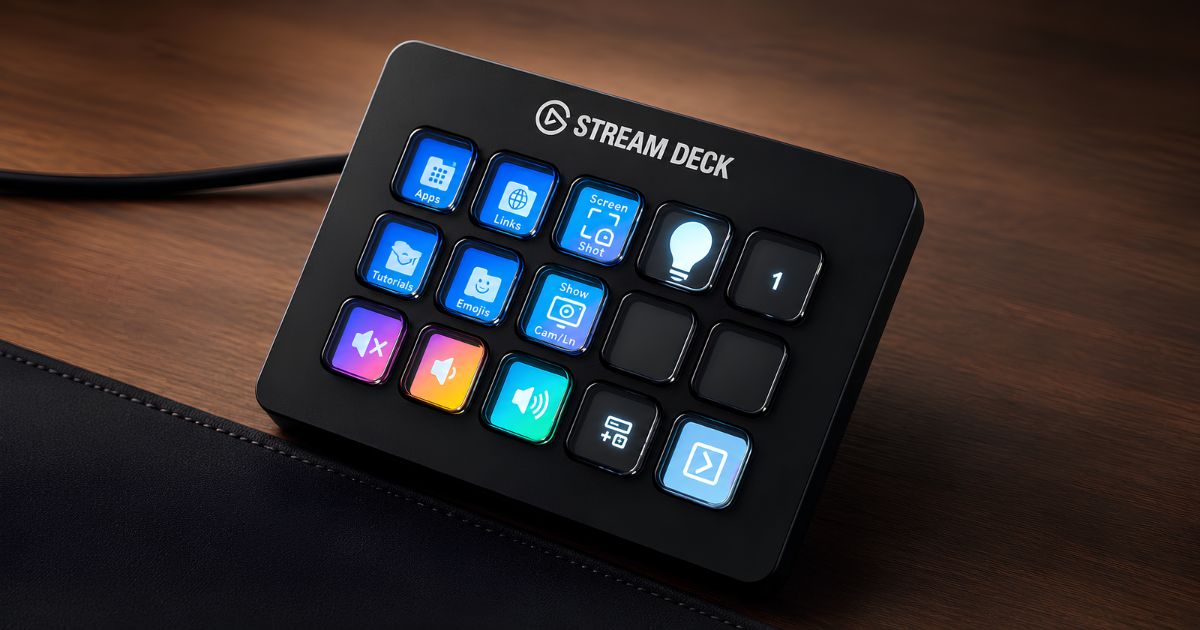
If you’ve ever seen a Stream Deck, it was probably on a gamer’s or streamer’s desk, surrounded by RGB lights and a very expensive microphone. So it’s fair to ask whether one has any place on the desk of someone who runs online training and workshops. Having used one for exactly that, my answer is: more than you’d think.
A Stream Deck is a small box of buttons, each with its own tiny screen, that you can set up to do almost anything on your computer. In other words, it’s a set of keyboard macros you can see. One press can mute your microphone, paste a link into the chat, open the file with all your session links, or start a whole chain of actions at once. For trainers, that means fewer awkward pauses while you hunt through menus, and more attention left over for the people in your session.
Good choice, recommended
Elgato Stream Deck MK.2 (15 keys)
Worth it if you run online sessions every week. It loses half a star for the price and the time it takes to set up.
What is a Stream Deck?
Stream Deck is a range of programmable button pads made by Elgato. The best-known model has 15 keys in three rows of five, and you can check the current price on Amazon.1 Each key is a small LCD screen, so it can show an icon, a word or a photo, and the icon can change to show what’s happening, such as a red microphone when you’re muted.
The keys do nothing on their own. You set them up in the free Stream Deck app on Windows or macOS by dragging actions onto them. Those actions include:
- Hotkeys: press a keyboard shortcut for you, such as Ctrl+Shift+M, without you having to remember it.
- Open: open an app, a file, a folder or a website.
- Text: type out a saved piece of text wherever your cursor is.
- Multi Actions: run several actions in a row from a single key, with short pauses between them if needed.
- Plugins: control other apps and services, such as Zoom, Spotify, OBS or your smart lights.
Elgato describes a Multi Action as a single key that runs several actions in sequence, and the Text action as a way to insert a saved block of text wherever your cursor is.2 Those two features alone are where most of the value for trainers lies.
It’s not just for gamers and streamers
The name and the marketing don’t help. Stream Deck was designed for people who broadcast games live, who need to switch cameras, play sound effects and talk to their audience all at once. But think about what you do as an online trainer: you present, manage the tech, watch the chat, run activities, open and close breakout rooms and keep to time, often on your own. That’s a live broadcast too, just with more learning and fewer explosions.
The difference a Stream Deck makes is flow. Without one, sharing a link might mean leaving your slides, finding the document, copying the link, opening the chat, pasting it and getting back to where you were: five or six clicks, and a pause that everyone notices. With one, you press a button and keep talking.
Why I bought one (it wasn’t for training)
I didn’t buy my Stream Deck for training at all. In September 2026 I broke my wrist, and the keyboard shortcuts I use all day long, like Command-C and Command-V to copy and paste, suddenly became hard work. Every awkward stretch across the keyboard slowed me down, so I bought a Stream Deck to put those shortcuts on big buttons I could press with one finger.
Then I opened the software and realised how much more it could do. What started as a way to get through an injury quickly became part of how I run training and workshops, and most of the ideas in this article come from that.
Practical ways online trainers can use a Stream Deck
Meeting controls you can find without looking
The most obvious use is a set of keys for your video call: mute and unmute, camera on and off, raise your hand and share your screen. Physical buttons are quicker and more reliable than hunting for icons that hide when you move your mouse away.
For Zoom, Elgato released a free official plugin in June 2025. It covers unmuting your microphone, turning on your camera, starting a screen share or recording, raising your hand and sending reactions, and the keys show whether your mic and camera are on or off.3
Microsoft Teams is less straightforward. Elgato’s official Teams plugin was removed from its marketplace on 12 December 2025, after Microsoft withdrew the API it relied on, and existing Teams actions stopped working.4 You can still control Teams with Hotkey actions, using Microsoft’s own shortcuts: Ctrl+Shift+M to mute, Ctrl+Shift+O for the camera and Ctrl+Shift+K to raise your hand on Windows, or Command instead of Ctrl on a Mac.5 The catch is that the keys can’t show whether you’re muted, so keep an eye on Teams itself.
Links and messages at the press of a button
This is my favourite use. Set up Text actions for the things you paste into the chat in every session:
- The link to your whiteboard, shared document or slides.
- Your feedback form or evaluation survey.
- A welcome message: “Welcome! While we wait, please add your name and where you’re joining from in the chat.”
- A break message: “We’re taking a 10-minute break. Back at 11:15, see you then!”
- Instructions for the next activity, so people can reread them in breakout rooms.
- Your contact details, booking link or the link to your next course.
Or, if your links change from session to session, set up one key that opens a document with all the links for today’s session, so they’re always one press away.
One key to set up your whole session
A Multi Action can prepare your whole workspace before people arrive. One press could open your slides, your whiteboard, your session plan and a timer, then turn on Do Not Disturb so notifications don’t pop up while you’re sharing your screen. Another key at the end could open your feedback form and your notes template, ready to write up the session.
Slides without the scramble
Hotkeys can move your slides forwards and backwards, start the slideshow from the beginning or the current slide, and black out the screen when you want everyone’s attention on the conversation rather than the slides. If you switch between a full-screen camera and your slides, for example in OBS, a Stream Deck can do that too.
The slide trick I find handiest is for breaks. I used to put a break slide with a timer wherever I expected the group to need one. But my sessions have become more fluid, and I’d rather take a break when people need it than when the slides say so. Now there’s a single break slide at the very end of my deck, and one key on my Stream Deck jumps straight to it, with no scrolling or flicking through slides while everyone watches. Another key takes me back to exactly where I was. It’s a small thing, but it makes flexible breaks feel effortless.
Timers, sounds and music
Keys can start a countdown timer for an activity, or play a short sound, such as a gentle chime when breakout time is almost up. Elgato’s free Spotify plugin can play and pause music, skip tracks, play a chosen playlist and turn the volume up or down in set steps, as long as the Spotify app is installed and running.6 I like having a calm playlist for breaks and arrivals, with one key to fade it down when it’s time to start.
Lights and the room around you
If you have smart lights, a Stream Deck can control those too. A community-made plugin connects Stream Deck to Home Assistant, which lets keys control and monitor almost any device in your smart home, including lights.7 Some ideas:
- A key that turns on a “live” light outside your door, so nobody walks in mid-session.
- Different light colours or brightness for different parts of a session, such as a warm light for reflection and a brighter one for energetic activities.
- A “start session” Multi Action that sets your lights, opens your apps and mutes notifications in one go.
Elgato’s own Key Light and many other smart lights have plugins too, so you don’t need Home Assistant to get started.
Accessibility and comfort
Large physical buttons can be easier than precise mouse movements and three-key shortcuts, especially if you have a repetitive strain injury, limited dexterity or simply a long day of sessions. They also take some of the mental load off: you don’t have to remember where a setting lives when you’re also thinking about your group. I know this first-hand: a broken wrist is the reason I bought mine.
Profiles, pages and folders: different buttons for different jobs
Fifteen keys sounds limiting, but you’re not stuck with one set of buttons. The Stream Deck app lets you organise them in three ways:
- Profiles: completely different sets of keys for different situations. You might have one profile for training, one for admin and one for personal use, with your music, smart home and favourite websites.
- Smart profiles: profiles that switch automatically depending on which app you’re using, so your Zoom controls appear when Zoom is in front and your slide controls appear when PowerPoint is.
- Pages and folders: extra screens of keys within a profile. A folder key opens a new layer of buttons, like a folder of apps on your phone, and a back key returns you to the main screen.
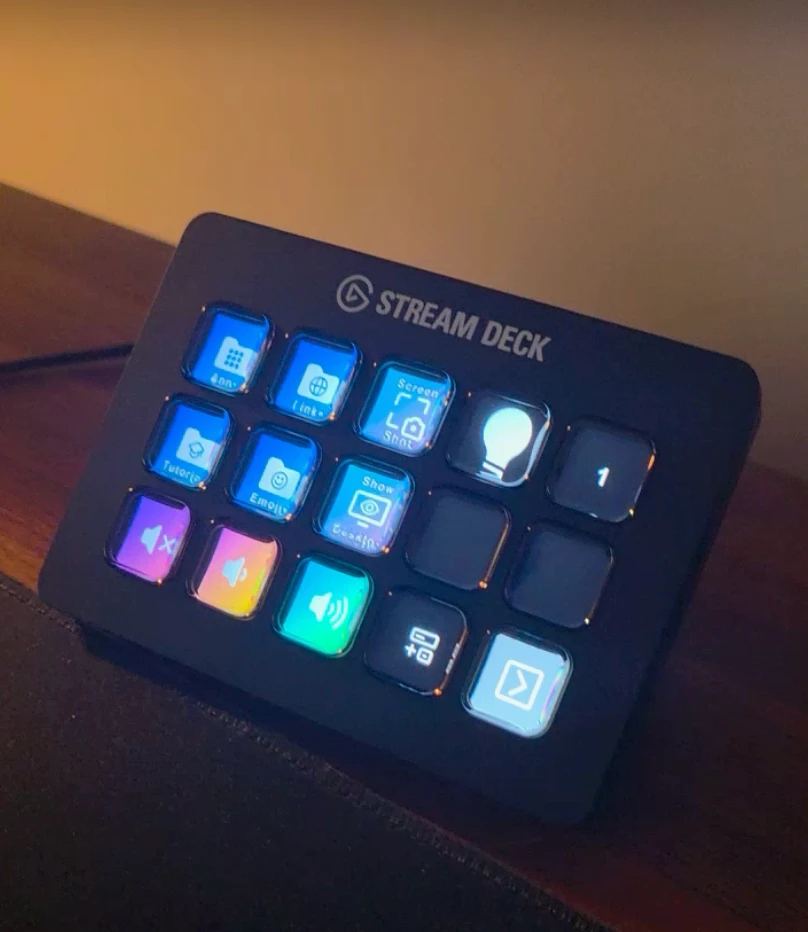
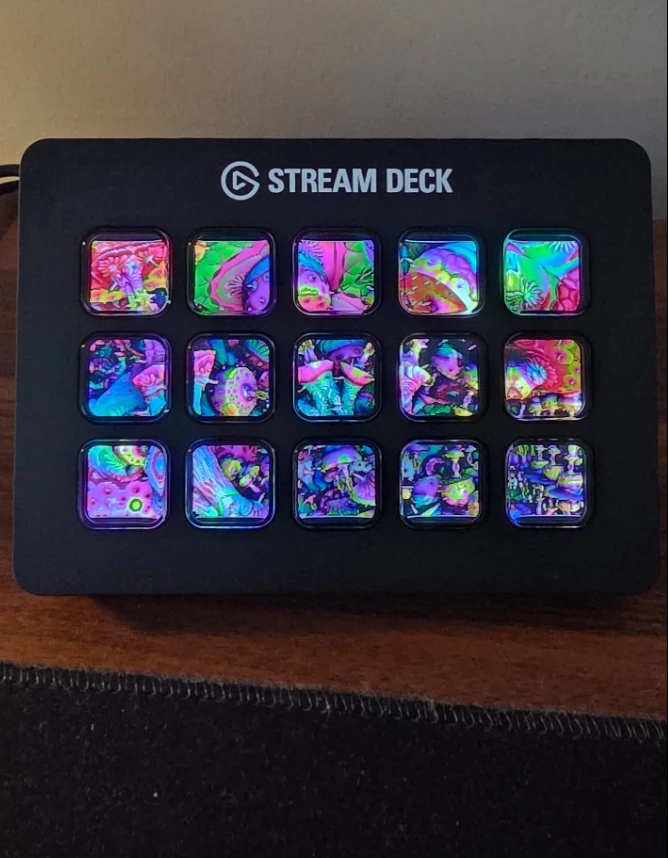
The Stream Deck in the photos shows how this works in practice. Folder keys hold links, tutorials and emojis. Single keys take a screenshot, show the desktop and switch a light on and off. The bottom row has mute, volume down and volume up, a calculator and a terminal. When it’s left alone, it shows a colourful picture spread across all 15 keys as a screensaver, which is a nice touch on a desk you look at all day.
Which Stream Deck should you buy?
| Model | Controls | Best for |
|---|---|---|
| Stream Deck Mini | 6 keys | Trying it out, or just meeting controls and a few links |
| Stream Deck Neo | 8 keys and 2 touch points | A small, simple set-up with room for a page or two |
| Stream Deck (15 keys) | 15 keys | Most online trainers: enough for meeting controls, links and a few Multi Actions |
| Stream Deck + | 8 keys and 4 dials | Trainers who want dials for volume and audio levels |
| Stream Deck XL | 32 keys | Producers and trainers running complex, multi-camera sessions |
For most online trainers, I’d recommend the 15-key model. Six keys fill up very quickly once you’ve added mute, camera and a couple of links, and 32 keys is more than most people will use. If you’re not sure, try before you buy: the Stream Deck Mobile app for iOS and Android gives you six keys free on your phone or tablet, with more available through a Pro licence.8
The downsides
- Price: it’s not cheap for a box of buttons, and everything it does can be done with a keyboard and mouse.
- Set-up time: it takes an hour or two to set up well, and it pays to start small and add keys as you notice what you do over and over.
- Integrations can break: the end of the Teams plugin is a reminder that plugins depend on other companies. Hotkeys are slower to set up, but they rarely stop working.
- Community plugins vary: many of the best plugins are made by volunteers. Check reviews, and be careful about giving plugins access tokens for your accounts or smart home.
- Another thing on your desk: if you train from different places, it’s one more thing to carry and plug in, although the mobile app can stand in when you’re away.
Good choice, recommended
Elgato Stream Deck MK.2 (15 keys)
It takes dozens of small interruptions out of every online session, and the 15-key model has room for everything most trainers need. It loses half a star because it is pricey for a box of buttons, takes an hour or two to set up well, and its plugins depend on other companies.
Pros
- Meeting controls you can find without looking
- Links and chat messages at one press
- One key can set up a whole session
- Smart profiles switch with the app you are using
- Helps with accessibility and comfort
- Try it free first with the mobile app
Cons
- Pricey for a box of buttons
- An hour or two to set up well
- Integrations can stop working
- Community plugins vary in quality
- One more thing to carry
So, is a Stream Deck worth it for online trainers?
If you run online training or workshops every week, I think it is. It won’t make you a better facilitator on its own, but it removes dozens of small interruptions from every session, and those add up. You look more polished, you stay in the flow of the conversation, and you have more attention for the people in front of you, which is the whole point.
If you run one or two sessions a month, you’ll probably get most of the benefit from learning your platform’s keyboard shortcuts and keeping a document of links open, or by trying the free mobile app first. For more ideas on keeping online sessions lively, see our guide to monitoring engagement in online workshops and these facilitation techniques to use on Zoom.
What does a Stream Deck do?
A Stream Deck is a pad of programmable keys, each with its own small screen. Each key can press a keyboard shortcut, open an app, file or website, type saved text, control another app through a plugin, or run several of these actions at once.
Does Stream Deck work with Zoom and Microsoft Teams?
Yes. Zoom has a free official plugin for controls such as mute, camera, screen sharing and recording. The official Teams plugin was removed in December 2025, but you can still control Teams with keyboard shortcuts set up as Hotkey actions.
Which Stream Deck is best for online training?
For most trainers, the 15-key model is the best balance of size, price and flexibility. The 6-key Mini suits anyone who only wants meeting controls and a few links, and the 32-key XL suits more complex productions.
Is there a free alternative to a Stream Deck?
The Stream Deck Mobile app gives you six keys free on a phone or tablet, which is a good way to try the idea. You can also learn the keyboard shortcuts for your video platform and slides, which covers many of the same tasks.
Do you need a Stream Deck to be a good online trainer?
No. Good facilitation comes from preparation and attention to your group, not equipment. A Stream Deck simply removes small interruptions, so it’s most useful for people who run online sessions often.
Sources
- Amazon: Elgato Stream Deck MK.2 (15 keys). ↩︎
- Elgato: How to be more productive with Stream Deck. ↩︎
- Corsair newsroom (10 June 2025): Elgato x Zoom: making meetings even more productive. ↩︎
- Elgato Help Center: How to pair Stream Deck plugin with Microsoft Teams. ↩︎
- Microsoft Support: Keyboard shortcuts for Microsoft Teams. ↩︎
- Elgato: Control Spotify from Stream Deck. ↩︎
- cgiesche on GitHub: Home Assistant plugin for Stream Deck. ↩︎
- Elgato: Virtual Stream Deck and Stream Deck Mobile: what are the differences? ↩︎